
Installation Guide Michanger Pro - Samsung S9

Michanger Pro Resource Center
Resources for: S9 (G960N / G960F)
PC Software
Download Setup Tool
ROM Michanger Pro
INSTALL STOCK ROM (MANDATORY)
IMPORTANT NOTE
For customers currently on ANDROID 12 or 13 wanting to downgrade to ANDROID 10, you MUST reinstall the Stock ROM first (otherwise the device will be stuck at the LOGO).
II.Installation Guide
1Step 1: Preparation
- Power off the phone completely.
- Connect the phone to the computer via USB cable.
2Step 2: Enter Download Mode
- Press and hold 3 buttons: Bixby + Power + Volume Down (Vol -).
- When the blue screen appears, press Volume Up (Vol +) to confirm and enter Download Mode.
3Step 3: Flash TWRP Recovery
- Open Odin3 (found in the tool folder).
- Under the Options tab, UNCHECK the Auto Reboot box (Crucial).
- In the AP slot, select the
twrp-starlte.img.tarfile. - Click Start. Wait for the green PASS message.
Odin3
0:[COM34]
ID:COM
Log
Options
Pit
Tips - How to download HOME binary
OLD model : Download one binary ...
NEW model : Download BL + AP + CP + HOME_CSC
OLD model : Download one binary ...
NEW model : Download BL + AP + CP + HOME_CSC
BL
AP
CP
CSC
USERDATA
PASS!
Odin3_v3.14.1
−
×
FileHomeShareView
This PC > Downloads > Odin3_v3.14.1
twrp-starlte.img.tar10MB
1 items
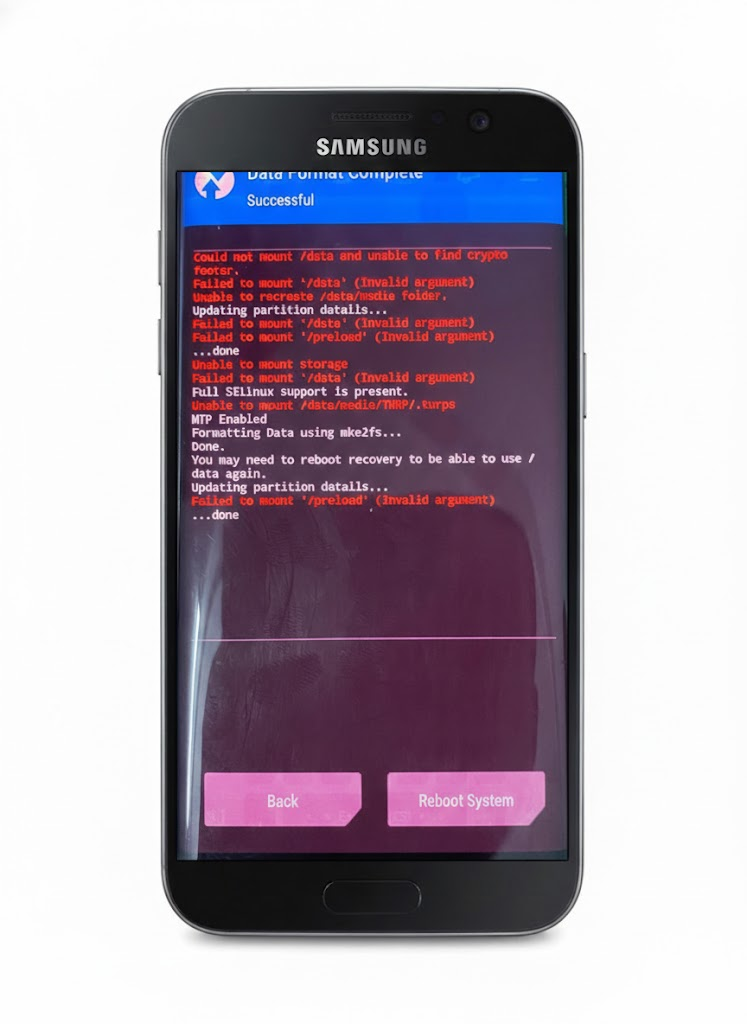
4Step 4: Format Data
- Hold Bixby + Power + Volume Down to force off the device.
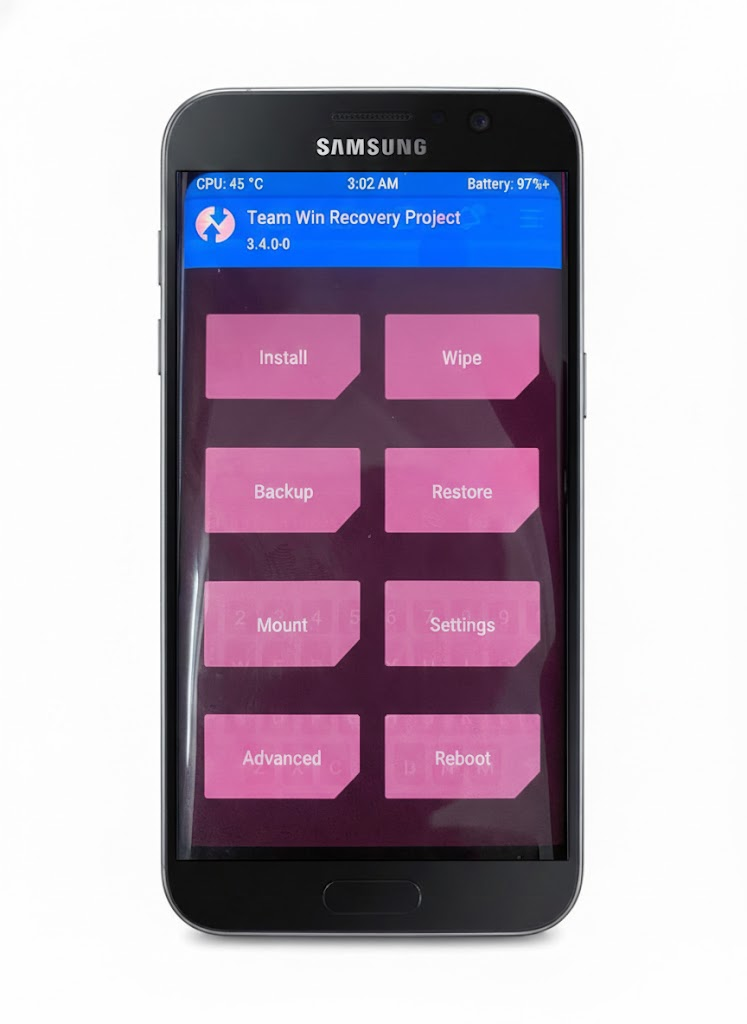
- Immediately switch to holding Bixby + Power + Volume Up to enter TWRP.
- In TWRP:
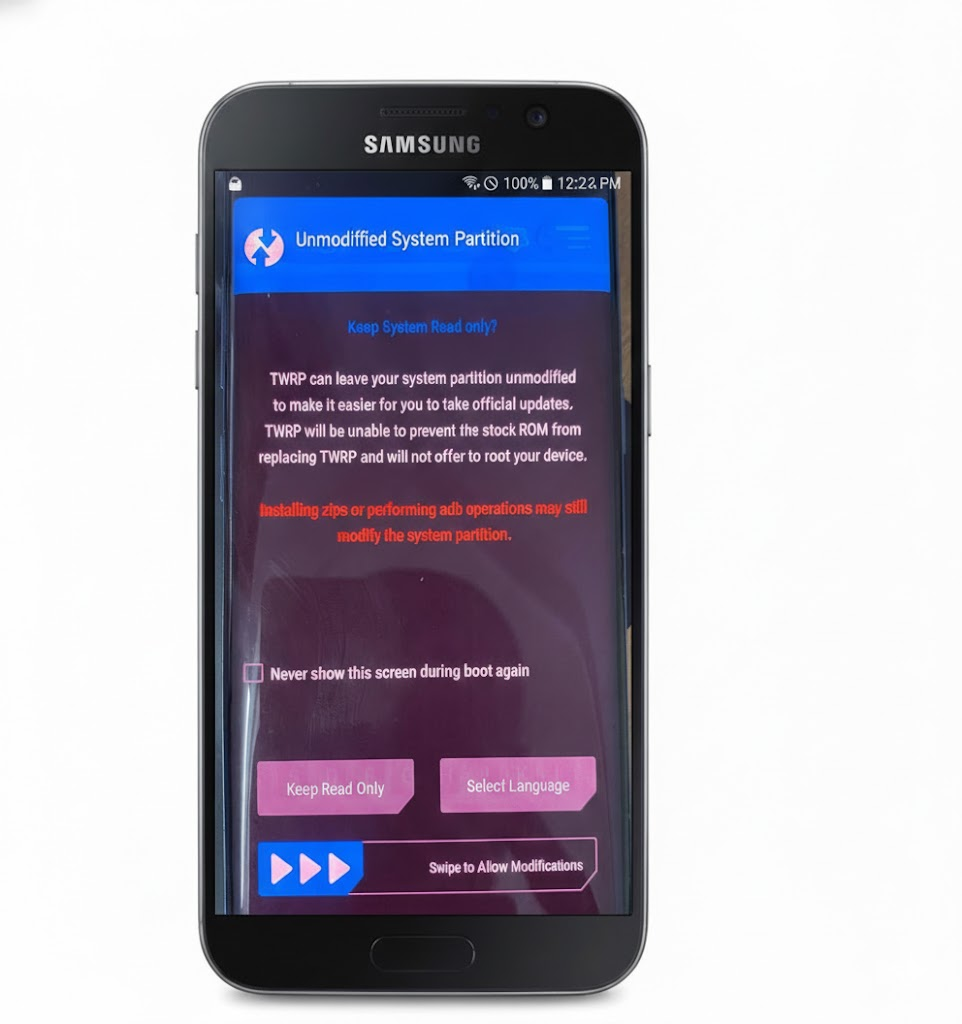
- Swipe to Allow Modifications.
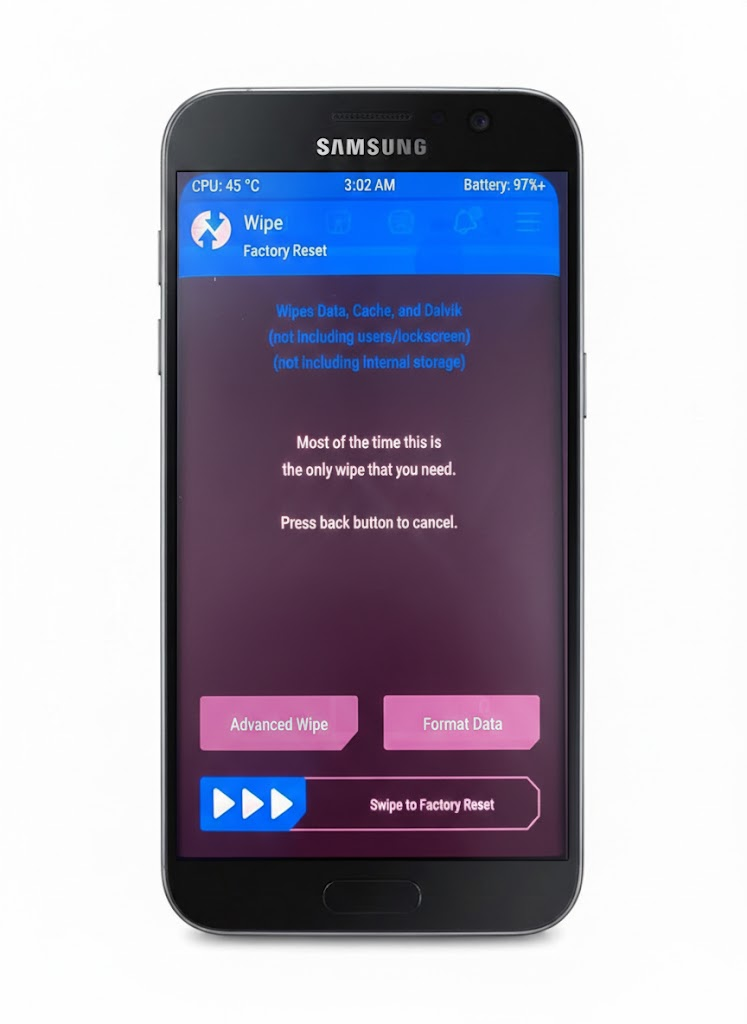
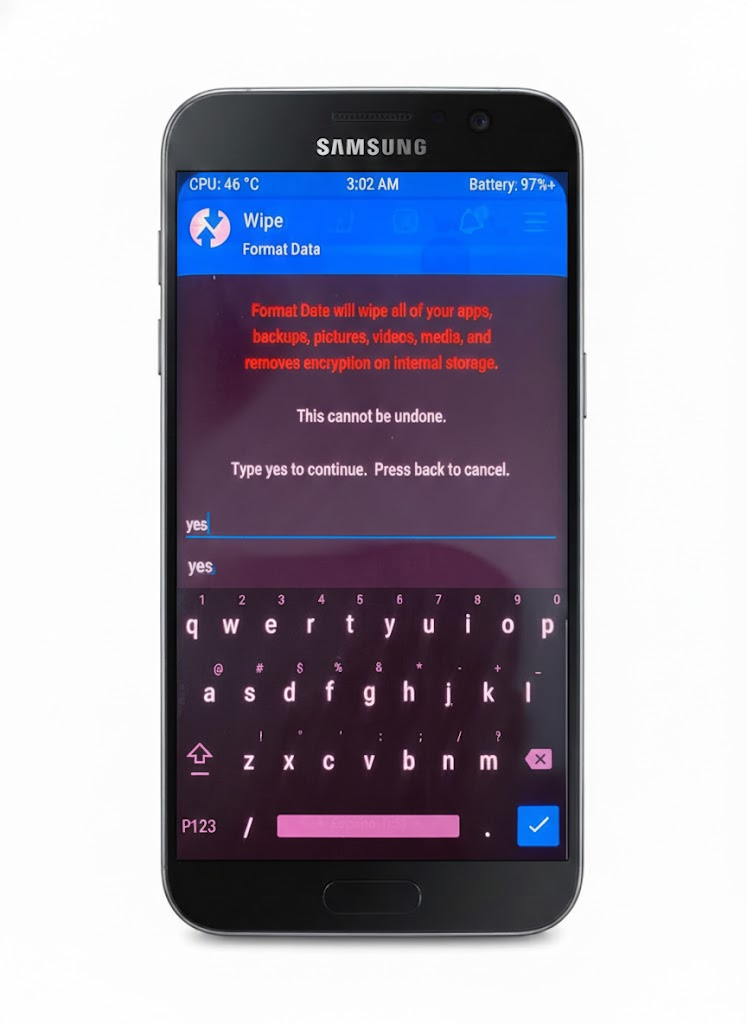
- Select Wipe -> Format Data -> Type
yes-> Press the checkmark.
- DO NOT reboot the phone (stay on the TWRP screen).
5Step 5: Run Installation Tool
- Open
Setup_ROM_S9_MICHANGER_PRO.exedownloaded from the resource section. - Click LOAD to detect the device (Status must show as Recovery).
- Click INSTALL MiROM & GApps.
- Wait for the tool to complete (approx. 5 mins) until success is reported.
Install MiChanger Pro S9
Index
Device Id
Progress
Status
1
0091bf750804
Ready!!!
Recovery
Loading Script...